
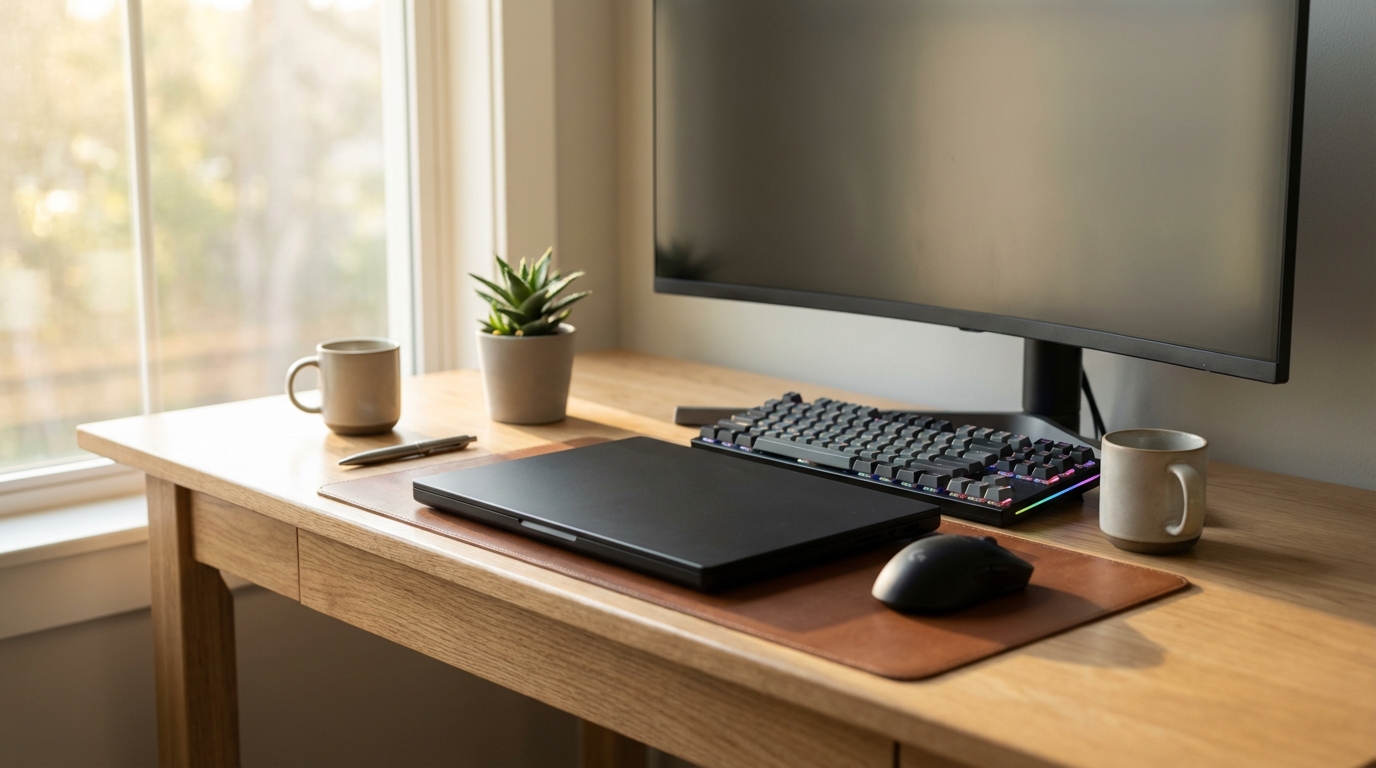
Best Budget Laptops for AI and Coding Under $1,200
An ex-engineer's honest picks for coding and AI work on a budget, with the RAM, GPU and Linux tradeoffs that actually decide it.

James Carter
Jun 16, 2026
James Carter
June 16, 2026
Disclosure: This article contains affiliate links. We may earn a commission at no extra cost to you if you purchase through our links.
I wrote code for a living for the better part of a decade before I started writing about the hardware, and of everything on a developer's desk, the monitor is the piece I changed my mind about the most. For years I chased refresh rates and color gamuts that turned out to mean almost nothing for staring at a wall of text all day. What actually matters is duller and more practical: can I read a 13px font without leaning in, can I fit a real amount of code on the screen at once, and does one cable charge my laptop while it drives the panel?
So this is not a stopwatch review with invented test scores. I read the spec sheets, I've used several of these panels day to day, and I've argued about scaling and pixel density on the dev forums long enough to know where marketing stops and the real tradeoffs begin. Below are the monitors I'd recommend to a programmer right now, grouped by who they're for rather than ranked by some fake number out of ten. Prices move week to week, so treat every figure as a current ballpark, not a promise.
Three things decide whether a display is good for code, and they are not the three the box brags about.
The first is pixel density, measured in pixels per inch. Code is small text, and small text only looks crisp when there are enough pixels packed behind each character. A 27-inch 4K panel (3840x2160) lands at roughly 163 PPI, which is sharp enough that you stop noticing the pixels. A 27-inch 1440p panel sits near 109 PPI, which is fine but visibly softer at small font sizes. The real outlier is 5K at 27 inches, around 218 PPI, where text genuinely looks printed. If your eyes are tired by 4pm, density is usually the reason before brightness ever is.
The second is vertical space. Developers read down, not across. A 16:9 panel at 4K gives you 2160 rows of pixels; a 21:9 ultrawide at 3440x1440 gives you only 1440, even though it's physically wider. That tradeoff is the whole ultrawide debate in one sentence, and I'll come back to it. If you live in long files, log tails and stack traces, vertical pixels are worth more than horizontal ones.
The third is whether a single USB-C or Thunderbolt cable can both drive the display and charge your laptop. A modern 14-inch laptop wants somewhere around 65W to 90W to charge under load; a 16-inch machine compiling at full tilt can ask for more. A monitor that delivers 90W to 140W of power over one cable replaces your charger, your video cable and your USB hub all at once. For anyone who docks a laptop every morning, that one feature changes the desk more than any spec on the panel itself.
Panel type and brightness matter too, just less than people think. IPS gives you accurate color and wide viewing angles and is the safe default. Dell's IPS Black variant pushes contrast to 2000:1 or 3000:1, which makes dark code themes look properly black instead of washed gray. VA panels go deeper on contrast but smear a little on motion. OLED is gorgeous but carries a real burn-in worry for people who keep a static toolbar and menu bar on screen for ten hours a day, which is every developer I know. Aim for at least 350 nits if you sit near a window; the rest is preference.
| Monitor | Size & resolution | Panel | Approx. PPI | USB-C / TB power | Best for | Approx. price |
|---|---|---|---|---|---|---|
| Dell U2725QE | 27" 4K (3840x2160) | IPS Black, 120Hz | ~163 | Thunderbolt 4, 140W | Overall pick | ~$650-700 |
| Dell U2723QE | 27" 4K (3840x2160) | IPS Black, 60Hz | ~163 | USB-C, 90W | 4K value | ~$430-550 |
| BenQ PD2705U | 27" 4K (3840x2160) | IPS, 60Hz | ~163 | USB-C, 65W | Eye comfort on a budget | ~$400-470 |
| LG 34WP88C-B | 34" UW (3440x1440) | IPS, 60Hz | ~110 | USB-C, 90W | Ultrawide value | ~$400-500 |
| Dell U3425WE | 34" UW (3440x1440) | IPS Black curved, 120Hz | ~110 | Thunderbolt 4, up to 140W | Premium ultrawide dock | ~$800-1,000 |
| Apple Studio Display | 27" 5K (5120x2880) | IPS | ~218 | Thunderbolt, 96W host | Sharpest text, Mac | from ~$1,599 |
| Samsung Odyssey G9 | 49" super-UW (5120x1440) | VA, 240Hz | ~109 | None | Maximum width | ~$700-1,100 |
If you handed me a budget and told me to set up a developer right now, this is where it would go. The U2725QE is a 27-inch 4K panel built on Dell's newest IPS Black, with a 3000:1 contrast ratio that genuinely matters if you live in a dark editor theme. Black backgrounds read as black, not as the slightly lit gray you get from ordinary IPS, and small light-on-dark text sits cleaner against it.
The headline for laptop developers is the connectivity. It runs Thunderbolt 4 as a single-cable dock: one wire carries the 4K signal, your peripherals, wired Ethernet through the built-in RJ45 port, and up to 140W of charging. That 140W figure is the part worth paying for, because it comfortably keeps even a hungry 16-inch laptop topped up while it compiles, where a 90W monitor would slowly lose the fight under heavy load. Dell rates the color at 99% DCI-P3 calibrated to a Delta E under 1.5, which is more accuracy than backend work needs and exactly right if you also touch frontend or design.
It runs at 120Hz, which I'll be honest about: you don't need it to read code, but you notice it the moment you scroll. Dragging through a thousand-line file feels smoother, and once you've lived with it, 60Hz looks faintly stuttery. The stand tilts, swivels, pivots into portrait and rises almost six inches, and a proper KVM lets two machines share one keyboard and mouse. The catch is price; at roughly $650 to $700 it costs noticeably more than the older 60Hz model, and if you never plug in a second computer or a power-hungry laptop, you're paying for headroom you might not use.
Before the U2725QE existed, this was the answer to "what monitor should a developer buy," and it's still the smart pick if you don't need 120Hz or 140W. Same 27-inch 4K resolution, same 163 PPI sharpness, the previous-generation IPS Black at 2000:1 contrast, and a USB-C dock that pushes 90W to your laptop while carrying video, data and Ethernet over one cable.
I docked a 14-inch laptop into one of these for a long stretch and never thought about the charger again. Keyboard, mouse, an external SSD and a wired network connection all came up through the monitor's hub the moment I plugged in the single cable. Factory color calibration is tight, the stand has the full range of motion including portrait pivot, and the built-in KVM handles a work-and-personal two-machine setup. The brightness tops out around 350 nits, which is enough unless you fight direct sun. The honest limitations are that it's locked to 60Hz and the bundled speakers are an afterthought. At roughly $430 to $550 depending on the week, it's the best balance of sharpness, docking and price on this list, and it's the one I point most people to. If you're also kitting out a workspace, it pairs naturally with a good board from our guide to the best mechanical keyboards for programmers.
BenQ's DesignVue line leans hard on eye comfort, and after enough twelve-hour days I've come to take that seriously rather than roll my eyes at it. The PD2705U is a 27-inch 4K IPS panel with hardware-level low blue light filtering, meaning it cuts the fatiguing part of the spectrum without dropping a sickly yellow film over everything the way software night-mode filters do. Add a flicker-free backlight and a brightness sensor that quietly tracks the room, and the screen stays comfortable deep into a long session in a way that's hard to appreciate until you stop getting that late-afternoon eye ache.
Color is factory-calibrated to 99% sRGB and 99% Rec.709 with a Delta E around 3, which covers most development and plenty of content work, though it skips the wider P3 gamut the Dells offer. USB-C delivers 65W, enough for a 13- or 14-inch laptop but likely to lose ground on a 16-inch machine under sustained load, so match it to your hardware. There's a built-in KVM and a physical "HotKey Puck" for switching modes without diving into the menu. Brightness is the soft spot, in the 250 to 350 nit range, so it's happiest out of direct glare. At roughly $400 to $470 it's the most comfortable 4K screen I'd recommend at the low end of the price scale, for anyone whose priority is finishing the day without sore eyes rather than chasing peak specs.
This is the monitor that talked me into the 21:9 life without spending a fortune. The 34WP88C-B stretches 3440x1440 across a gently curved 34-inch IPS panel, which is enough horizontal room to lay out three honest columns: editor in the middle, a terminal pinned to one side, documentation or a browser on the other, all visible without a single Alt+Tab. For a developer who works mostly in one language with a fixed editor-terminal-browser rhythm, that layout removes a constant low-grade friction you stop noticing only once it's gone.
It carries USB-C with 90W power delivery, so it doubles as a one-cable dock for most ultrabooks, and the ergonomic stand extends, swivels and adjusts height properly out of the box, which is rare at this price. Color runs up to 95% DCI-P3 with HDR10, fine for development and casual design. The tradeoff is baked into the resolution: at 3440x1440 you get only 1440 vertical pixels and around 110 PPI, so text is softer than on a 4K 27-inch and you see less of a long file at a stretch. If you read down more than across, that will bother you. Street price tends to sit in the $400 to $500 range, which makes it the most cost-effective ultrawide I'd put in front of a programmer.
When you want the ultrawide layout without compromising on the laptop-docking experience, the U3425WE is the upgrade. It's a 34-inch 3440x1440 curved IPS Black panel running at 120Hz, and it folds in the same Thunderbolt 4 hub story as Dell's best 27-inch screens: one cable for video, a stack of USB-A and USB-C ports, RJ45 Ethernet, a built-in KVM, and high-wattage charging that handles a demanding laptop without flinching. The IPS Black contrast carries over too, so dark themes look the part across that whole panoramic width.
What you're buying over the cheaper LG is the dock, the smoother 120Hz scroll and the deeper blacks, not more pixels. It's the same 3440x1440 and the same roughly 110 PPI, so the vertical-space and text-sharpness caveats of every ultrawide still apply. Price lands somewhere around $800 to $1,000, which is a real jump. I'd choose it over a 27-inch 4K only if the three-column workflow genuinely fits how you code, because you are trading away vertical resolution and density for that width. Dell publishes full specs on its own product page if you want to compare the hub details across its UltraSharp line.
For the sharpest code text you can put on a desk, this is it. The Studio Display is a 27-inch 5K panel at 5120x2880, which works out to about 218 PPI: small fonts render with a smoothness that genuinely looks closer to print than to a screen. Brightness reaches 600 nits, the P3 gamut is wide and accurate, and the current generation moves to Thunderbolt connectivity that drives the panel and delivers around 96W of host charging over the single cable, with extra downstream ports built in. The integrated camera and six-speaker array turn it into a tidy all-in-one for calls.
The catch list is real and you should weigh it. It starts at about $1,599, the tilt-only stand costs extra to upgrade and there's no height adjustment without paying up or adding a VESA arm, and it's 60Hz. It's also unapologetically built for the Mac; on Windows the macOS-tuned 5K scaling can be uneven. But if you're on a MacBook, value text clarity above everything, and spend two thousand hours a year reading code, the math on sharpness and eye comfort starts to make sense in a way it doesn't for everyone. LG's old UltraFine 5K used to be the budget route to this resolution, but it's effectively end-of-life now and priced absurdly where it's even in stock, so I no longer recommend it.
The most divisive screen here, and the one I'd only hand to a specific kind of developer. At 49 inches and 5120x1440, the Odyssey G9 replaces a dual-27-inch setup with one seamless curved sheet of screen, no bezel down the middle. If you genuinely run an IDE, a live preview, a terminal and a chat client side by side all day, nothing else gives you this much uninterrupted horizontal canvas. The aggressive 1000R curve keeps the far edges at a sane viewing distance, and the 240Hz refresh makes scrolling absurdly fluid.
Go in clear-eyed about the tradeoffs. It's a VA panel, so color accuracy and off-angle uniformity trail IPS, though sitting dead center for code that rarely bites. Vertical resolution is still only 1440 pixels, so you get width, not height. There's no USB-C power delivery at all, meaning you keep a separate laptop charger and lose the one-cable convenience that defines the rest of this list. It demands a genuinely large desk, and some window managers fumble snapping on a 32:9 aspect ratio. Pricing swings hard with sales, anywhere from about $700 to $1,100. It's a niche pick, but the developers who commit to super-ultrawide rarely go back to bezels.
This is the argument that never dies in dev chat, and the honest answer is that it depends on how your brain partitions work.
A dual-monitor setup wins on flexibility. You can angle the screens independently, flip one into portrait for long files and log output, mix sizes and resolutions, and keep working if one panel dies. The bezel between them makes a physical boundary that a lot of people, me included on some projects, actually like: code on the left, reference on the right, the gap reinforcing the split. Two 27-inch 4K panels also give you more total pixels than any single ultrawide, including the vertical pixels ultrawides are short on.
A single ultrawide wins on flow. No bezel cutting across your view, fluid window placement on a continuous canvas, and tools like FancyZones on Windows or Rectangle on macOS to snap apps into a grid you define. One screen also means one cable, less clutter, and no cursor jumping as it crosses the seam between two displays.
In practice, developers who work mostly in one stack with a steady editor-terminal-browser rhythm tend to prefer an ultrawide. Those who context-switch hard between coding, design review and video calls tend to prefer dual monitors and the clean separation. If you're genuinely unsure, my advice is to start with one excellent 27-inch 4K, like the U2723QE, and add a second identical panel later if you want more room. That path gives you the best per-pixel sharpness now and a clean dual setup later, and it's far cheaper to walk into than a $1,000 ultrawide you might not click with. If your work spills onto the road, it's also worth a look at our guide to the best portable monitors for remote workers for a travel second screen.
Buying a high-resolution panel is only half the job; the operating system has to scale the interface up so text is readable, and that's where people get burned. On a 27-inch 4K display you'll almost always run at 150% (or "Looks like 2560x1440" on a Mac), which gives you the sharpness of 4K with sensibly sized text. The problem is fractional scaling. On Windows, and especially on Linux, scaling at odd values like 125% or 150% can leave some apps blurry while others render crisp, because not every program respects the scaling cleanly. Integer scaling at 200% is always sharp but makes everything large; the in-between values are where it gets messy.
This is exactly why 5K at 27 inches is so loved by Mac developers: 5120x2880 scales down to a perfect "looks like 2560x1440" with clean 2x pixel doubling, so you get genuine 1440p working space at flawless sharpness. A 4K panel gets close, but be ready to spend an evening on per-app scaling settings the first time, particularly outside macOS. It's the most common reason someone buys a great monitor and ends up disappointed by blurry text. The panel was never the problem.
Is 4K worth it for coding, or is 1440p enough?
At 27 inches, 4K is a real upgrade for code. It renders small fonts with noticeably crisper edges, which cuts eye strain over a full day. I'd treat 27-inch 4K as the floor for professional dev work. At 32 inches and up, 4K stops being optional, because 1440p stretched that large looks visibly soft.
Does refresh rate actually matter for programming?
For reading static text, no. You will not see a difference between 60Hz and 120Hz on a paragraph of code. Where it shows up is scrolling: flicking through a long file feels smoother and is easier to follow at higher rates. It's a nice-to-have, not a reason to skip resolution or panel quality. If a 60Hz panel is sharper or cheaper, take the sharpness.
How much USB-C power delivery do I actually need?
Match it to your laptop. A 13- or 14-inch machine is usually happy on 65W. A 16-inch laptop, or anything that compiles and builds hard, wants 90W and is happiest at 140W so it keeps charging even under full load. Under-powering a hungry laptop means it slowly drains while plugged in, which is the most annoying way to discover a spec mattered.
Can I just use a 4K TV instead?
Technically yes, in practice no. Most TVs add input lag, apply image processing that smears small text, and use subpixel layouts that aren't tuned for crisp characters. A 43-inch 4K TV looks like a bargain until about a week of daily coding on it, after which the fuzzy text and lag wear you down. Buy a monitor.
For most developers, the Dell U2723QE is still the easy recommendation: sharp 4K text, a 90W one-cable dock, and a price that doesn't sting. Spend up to the U2725QE if you want 120Hz scrolling and the 140W headroom for a power-hungry laptop. If your eyes take a beating over long days, the BenQ PD2705U is the most comfortable screen at the budget end. Ultrawide fans should start with the LG 34WP88C-B and step up to the U3425WE only if they want the Thunderbolt dock to match. And if you're on a Mac and you want the sharpest code text that exists, the Apple Studio Display earns its premium.
Whatever you pick, weight pixel density and a one-cable dock over flashy refresh and HDR numbers, and set aside an evening to get scaling right. Get those two things sorted and your eyes will thank you somewhere around the third long session of the week. If you're building out the rest of the rig, our roundups of the best laptops for AI development and the best budget laptops for AI coding pair well with any monitor on this list.
An ex-engineer's honest picks for coding and AI work on a budget, with the RAM, GPU and Linux tradeoffs that actually decide it.
James Carter
Jun 16, 2026

Six real mechanical keyboards for coding, from a $109 Leopold to a $365 split board, picked by an engineer who types for a living.
James Carter
Jun 15, 2026
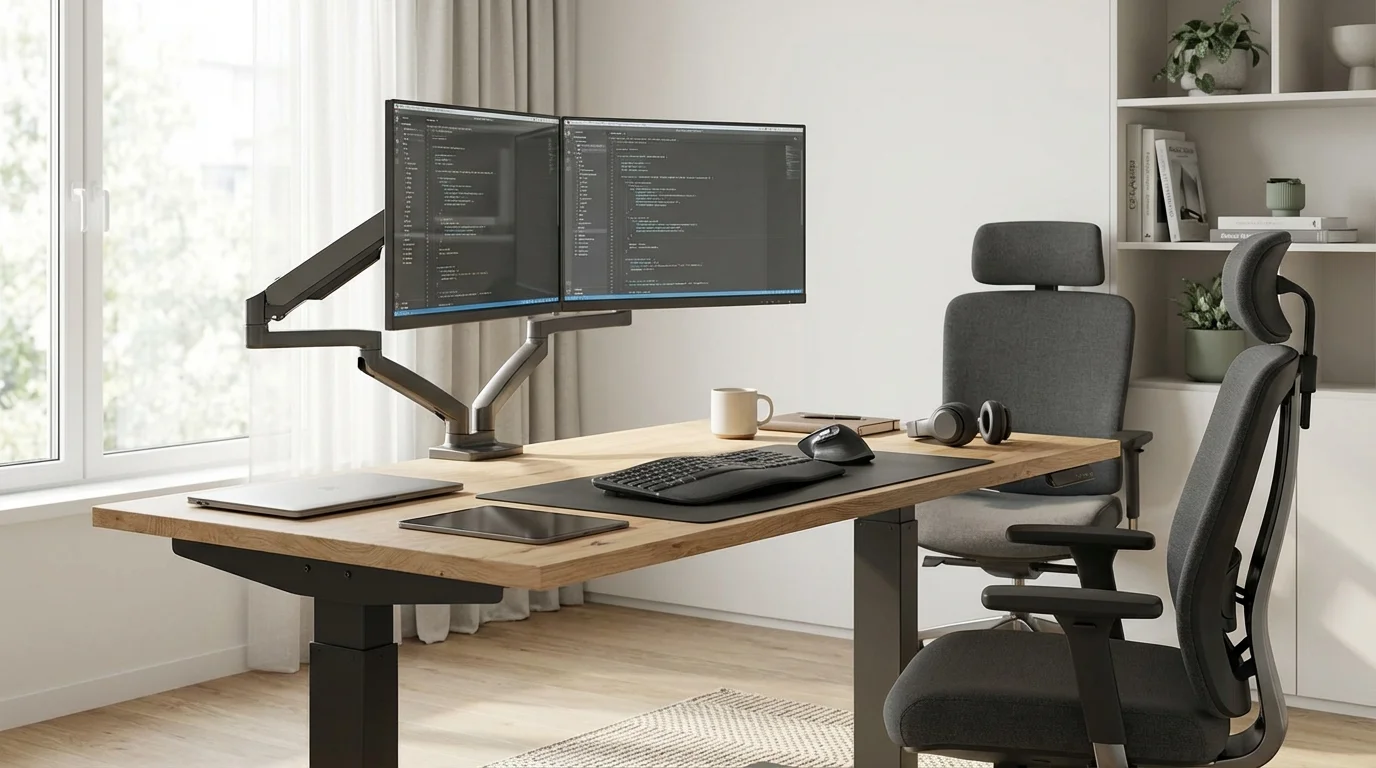
We coded at 6 standing desks for a month each. The $499 pick had less wobble than the $800 competitor.

James Carter
Feb 13, 2026