

Best Project Management Tools: 6 Tested With Real Teams
Jira takes 3x longer to set up than Linear. We tested 6 PM tools with real teams -- the winner depends on your team size.

James Carter
Feb 13, 2026
James Carter
February 13, 2026
Disclosure: This article contains affiliate links. We may earn a commission at no extra cost to you if you purchase through our links.
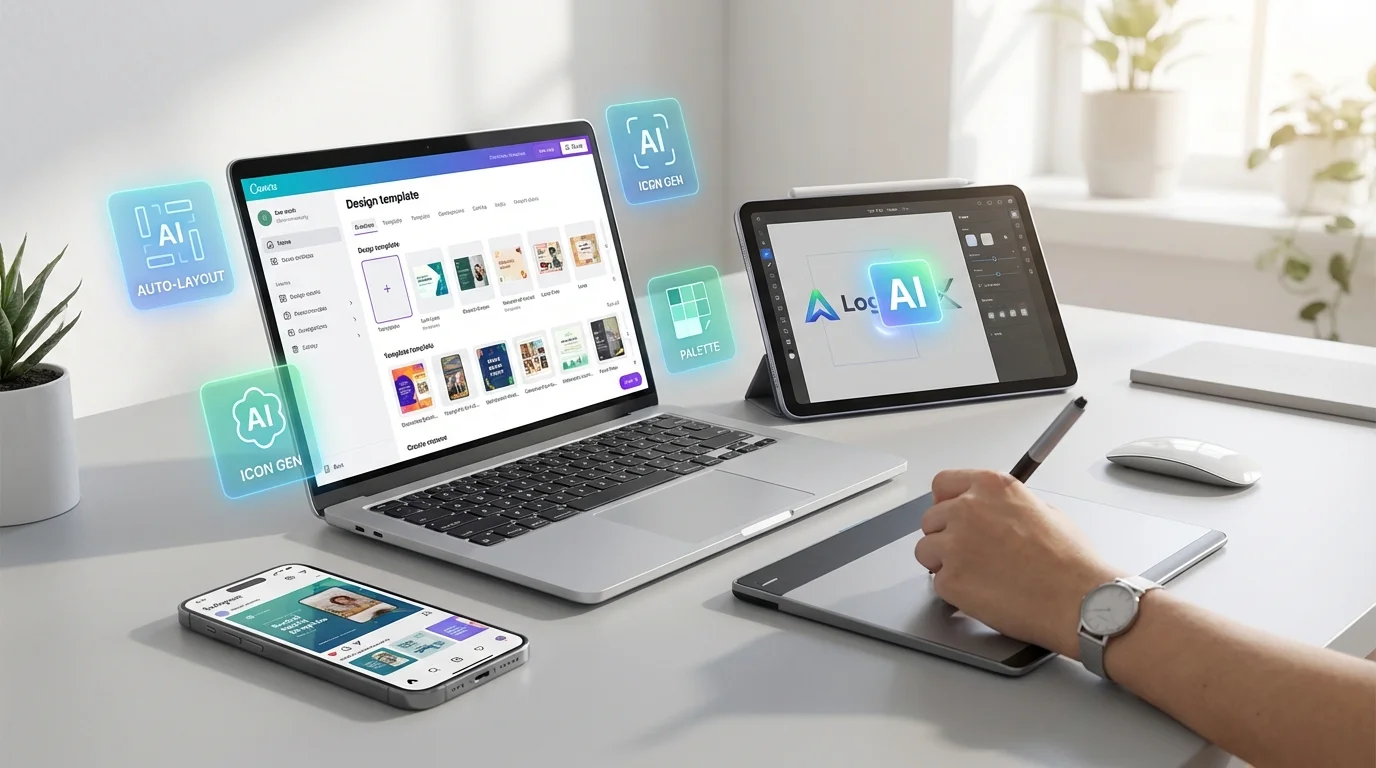
Design used to be a hard skill with a steep learning curve — color theory, typography, layout principles, and months of mastering Photoshop or Illustrator. That era is over. AI-powered design tools have lowered the barrier so dramatically that anyone who can type a sentence can produce professional-looking graphics, logos, and marketing materials.
I have spent the past three months testing every major AI design tool on the market, creating real deliverables — social media graphics, presentation decks, logo concepts, and product mockups. I am not a trained designer. My background is in tech journalism, which makes me the ideal guinea pig for tools that claim to empower non-designers. If these tools work for me, they will work for you.
I evaluated each tool on ease of use, template quality, AI capabilities, brand consistency features, export options, and pricing. Here are the five that stood out.
| Tool | Best For | AI Features | Free Tier | Starting Price | Ease of Use |
|---|---|---|---|---|---|
| Canva AI | All-purpose design | Magic Design, text-to-image, background remover | Yes (generous) | $13/mo | Excellent |
| Looka | Logo & brand identity | AI logo generation, full brand kits | Logo free, brand kit paid | $20 one-time (logo) | Very Good |
| Adobe Express | Adobe ecosystem users | Firefly AI, generative fill, text effects | Yes (limited) | $10/mo | Good |
| Figma AI | UI/UX & web design | Auto-layout, AI component generation | Yes (3 projects) | $15/mo | Moderate |
| Microsoft Designer | Office 365 users | DALL-E integration, template AI | Yes (generous) | Included in M365 | Excellent |
If you can only choose one AI design tool, make it Canva. The platform has transformed from a template-based design tool into a full AI-powered creative suite that handles virtually every design task a non-designer encounters.
The Magic Design feature is the headline act. You describe what you want — "Instagram post announcing a summer sale for a boutique clothing store with warm pastel tones" — and Canva generates multiple design options in seconds. These are not crude AI outputs. They are polished, properly formatted designs that respect platform dimensions, include thoughtful typography pairings, and arrange elements with genuine visual balance. In my testing, roughly 70% of Magic Design outputs required only minor text edits before being publish-ready.
What impressed me most was the Brand Kit integration. After uploading my project's logo, selecting brand colors, and specifying preferred fonts, every AI-generated design automatically incorporated these elements. This solves the biggest problem non-designers face: consistency. Without a brand kit, your social media graphics, presentations, and marketing materials look like they were made by five different people. With Canva's Brand Kit and Magic Design working together, everything feels cohesive.
The background remover and Magic Eraser tools deserve special mention. Removing backgrounds from product photos used to require Photoshop expertise and careful masking. Canva does it in one click with surprising accuracy, even handling complex edges like hair or transparent objects reasonably well. The Magic Eraser lets you remove unwanted objects from photos — power lines, photobombers, stray elements — with results that rival dedicated tools.
Key Features:
Pricing: Free tier is surprisingly capable (limited AI uses). Canva Pro at $13/month unlocks unlimited Magic Design, Brand Kit, background remover, and 100+ million premium stock assets. Teams plan at $15/month per person adds brand controls and approval workflows.
Pros: Unmatched template library, intuitive interface, strong AI across every feature, excellent free tier, works on any device.
Cons: Advanced photo editing still limited compared to Photoshop, AI image generation quality trails Midjourney, some premium templates feel overused.
Best For: Anyone who needs to create professional graphics regularly — social media managers, small business owners, marketers, educators, and content creators.
Creating a professional logo traditionally costs $500 to $5,000 when hiring a designer, or requires significant Illustrator skill to do yourself. Looka has carved out a compelling niche by using AI to generate logo concepts and complete brand identity packages at a fraction of the cost.
The process begins with a guided questionnaire. You enter your business name, select your industry, pick style preferences (modern, classic, playful, elegant), choose a color palette, and select icon styles you like. Looka's AI then generates dozens of logo concepts tailored to your inputs. The quality surprised me. While not every concept is a winner, the top five or six options from each generation batch are genuinely professional — balanced, readable at small sizes, and distinctive enough to not look generic.
Where Looka truly earns its value is the brand kit extension. Once you select a logo, the platform generates a complete brand identity: business card designs, social media profile images and banners, email signatures, letterhead, and a brand guidelines document specifying your exact colors, fonts, and logo usage rules. For a startup or small business that needs to look established from day one, this is remarkably valuable.
Key Features:
Pricing: Logo-only package at $20 one-time. Brand Kit at $96 one-time includes all brand materials. Premium Brand Kit at $192 adds full vector files and lifetime support. Subscription options available at $8/month for ongoing brand management.
Pros: Exceptional value versus hiring a designer, surprisingly good logo quality, complete brand identity in minutes, no design skills needed whatsoever.
Cons: Less creative control than working with a human designer, logos can occasionally feel templated, limited to brand identity (no general-purpose design), no free download (only free browsing).
Best For: Startups, freelancers, and small businesses needing a professional brand identity quickly and affordably.
Adobe Express brings something no competitor can match: access to Adobe Firefly, their proprietary AI model trained exclusively on licensed content. Every AI-generated image is commercially safe — a significant advantage for businesses that cannot afford legal ambiguity in their marketing materials.
Firefly inside Adobe Express handles three tasks exceptionally well. Text-to-image generation produces photorealistic or stylized images from prompts. Generative Fill lets you select an area of an existing image and fill it with AI-generated content that matches the surrounding style and lighting. Text Effects transforms plain text into visually stunning typographic treatments — text that looks like it is made of chocolate, fire, flowers, or any material you describe.
The template library is smaller than Canva's but curated to a higher standard, connecting seamlessly to Adobe Fonts and Adobe Stock. The learning curve is slightly steeper than Canva, but anyone who has used a modern web application will adapt within an hour.
Key Features:
Pricing: Free tier includes limited AI generation credits and basic templates. Premium at $10/month unlocks unlimited Firefly credits, full Adobe Fonts, 200M+ Adobe Stock assets, and brand features.
Pros: Commercially safe AI generation, excellent typography tools, Adobe ecosystem integration, professional-grade output quality, competitive pricing.
Cons: Smaller template library than Canva, slightly steeper learning curve, some AI features feel less polished than Canva's equivalents, Creative Cloud subscription not included.
Best For: Businesses prioritizing commercial safety of AI-generated assets, teams already using Adobe products, and users who need high-quality typography and print-ready outputs.
Figma has been the dominant UI/UX design tool for years, and its AI features now make it accessible to non-designers who need to create website mockups, app interfaces, and interactive prototypes.
The Make Design feature lets you describe a component — "a pricing card with three tiers, toggle for monthly/annual billing, most popular tier highlighted" — and Figma generates a fully structured, properly layered component using Auto Layout. The result is not just a static image; it is a real Figma component with correct constraints, responsive behavior, and editable layers. For product managers and founders, this means you can produce visual mockups that communicate your intent precisely instead of writing long descriptions that developers misinterpret.
The AI-powered Auto Layout suggestions address the most common non-designer mistake: inconsistent spacing and misaligned elements that make designs look amateur even when the concept is strong. Figma remains more complex than the other tools on this list, though. If your needs are limited to social media graphics and marketing materials, Figma is overkill. It earns its place here specifically for people who need to design interfaces or interactive prototypes.
Key Features:
Pricing: Free tier includes 3 Figma and 3 FigJam files. Professional at $15/month per editor unlocks unlimited files, AI features, and shared libraries. Organization plan at $45/month adds design systems management.
Pros: Industry-standard for UI/UX, AI features genuinely useful for non-designers, unmatched collaboration, developer handoff built in, enormous plugin ecosystem.
Cons: Steeper learning curve than other tools listed, overkill for simple graphics, AI features still evolving, free tier quite limited.
Best For: Product managers, startup founders, and anyone who needs to create website mockups, app interfaces, or interactive prototypes without formal design training.
Microsoft Designer is the most underrated tool on this list. Integrated directly into Microsoft 365 and available as a standalone web app, it leverages DALL-E for image generation and GPT for text suggestions — both so seamlessly integrated that you barely notice you are using AI.
The standout feature for Microsoft 365 subscribers is the deep integration with PowerPoint and other Office apps. Designer powers the "Design Ideas" feature in PowerPoint that transforms bland slides into visually polished presentations. Drop your content into a slide, click Design Ideas, and choose from AI-generated layouts that would take a designer 15-20 minutes to create manually.
In my testing, the image generation quality was solid though not exceptional — it trails Midjourney and Firefly for photorealistic outputs but handles graphic design and illustrations capably. Where Designer truly wins is accessibility. There is no separate app to learn, no new subscription to justify, and no learning curve beyond clicking a few buttons.
Key Features:
Pricing: Free standalone web app with generous AI generation limits. Full features included with Microsoft 365 subscription ($7-12.50/month depending on plan). No separate purchase required.
Pros: Free tier is excellent, seamless Office 365 integration, zero learning curve, AI image generation included, available everywhere Microsoft 365 is installed.
Cons: Less design flexibility than Canva, smaller template library, some AI features only available with M365 subscription, export options more limited.
Best For: Office 365 subscribers who need quick, professional graphics without leaving the Microsoft ecosystem, and anyone wanting a capable free design tool.
Check Price on Microsoft Designer
AI tools excel at high-volume, template-based work. If you need 30 social media graphics per month, weekly email headers, and presentation decks, an AI design tool will handle 90% of these tasks faster and cheaper than a designer.
Hiring a designer makes sense for foundational brand work — your core visual identity, complex website design, or product packaging where originality and emotional resonance are paramount. The practical sweet spot is having a designer create your brand guidelines and templates, then using AI tools to produce ongoing variations within that established framework.
If you are also exploring AI-generated imagery for your designs, our guide to the best AI image generators covers tools like Midjourney and DALL-E in depth. And if your design needs extend into marketing campaigns, check our roundup of AI tools for marketing for a broader toolkit.
Can AI design tools really replace design skills? For everyday business graphics, yes. These tools produce output that is professional enough for social media, presentations, and marketing emails. They will not replace a skilled designer for product packaging, custom illustrations, or sophisticated brand systems. But for the 80% of design tasks that involve arranging text, images, and brand elements within established formats, AI tools are more than sufficient.
Which tool is best for creating a logo? Looka is purpose-built for logo creation and produces the best results. Canva AI and Microsoft Designer can generate logos, but the quality and customization are not at the same level. If your budget allows $500 or more, consider hiring a designer for a truly unique logo.
Are AI-generated designs safe to use commercially? Yes. All five tools grant commercial usage rights. Adobe Express goes furthest by training Firefly exclusively on licensed content, offering the strongest IP protection. Always review the specific terms of service for your chosen tool.
How much can I realistically save with AI design tools? A small business typically spends $500-2,000 per month on freelance design. Canva Pro at $13/month or Adobe Express at $10/month can replace 70-80% of that spending. For solopreneurs, these tools eliminate the need for design outsourcing almost entirely for routine tasks.
For most people, Canva AI is the clear starting point — it covers the widest range of tasks and its free tier lets you evaluate the platform thoroughly. If you need a logo specifically, Looka delivers remarkable value for a one-time investment. If you already live in the Microsoft ecosystem, Microsoft Designer is the easiest tool to adopt because it is already on your computer.
The barrier between having a design idea and executing it has never been lower. These tools will not make you a designer, but they will make you someone who produces professional-looking designs — and for most purposes, that distinction does not matter.
Jira takes 3x longer to set up than Linear. We tested 6 PM tools with real teams -- the winner depends on your team size.
James Carter
Feb 13, 2026

One tool generated a complete site from a single sentence in 47 seconds. We tested 5 AI website builders -- 2 looked amateurish.
James Carter
Mar 4, 2026
The average pro spends 4 hours/day on email. We tested 8 AI assistants -- 3 cut that time in half, 5 made it worse.
James Carter
Feb 13, 2026